The easy and convenient way to securely plan and pay for your trip, right from your phone cash free using a major credit card.


1. Purchase
2. Activate
3. Ride
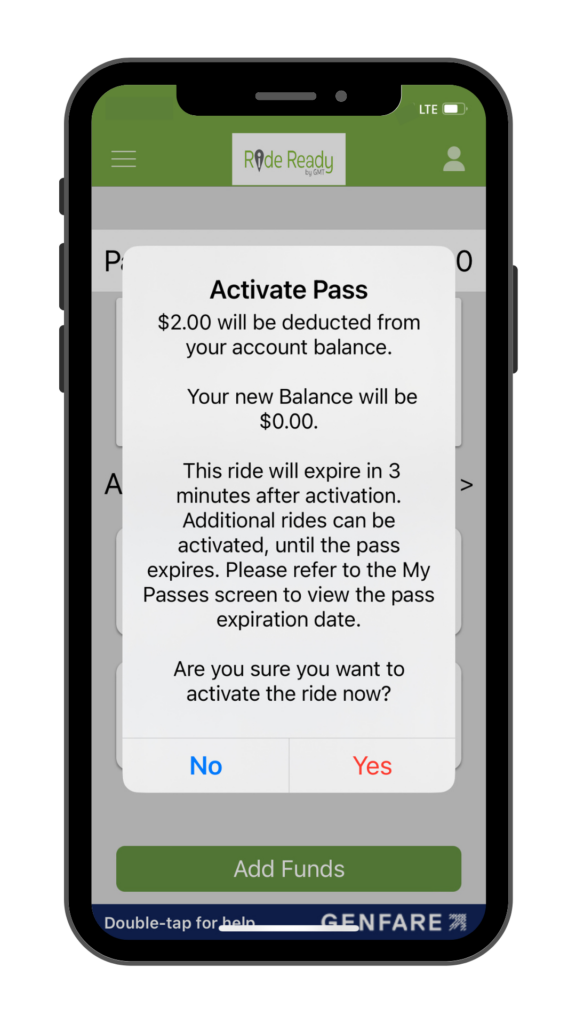
1. Purchase
Purchasing fares is easy with Ride Ready by GMT.
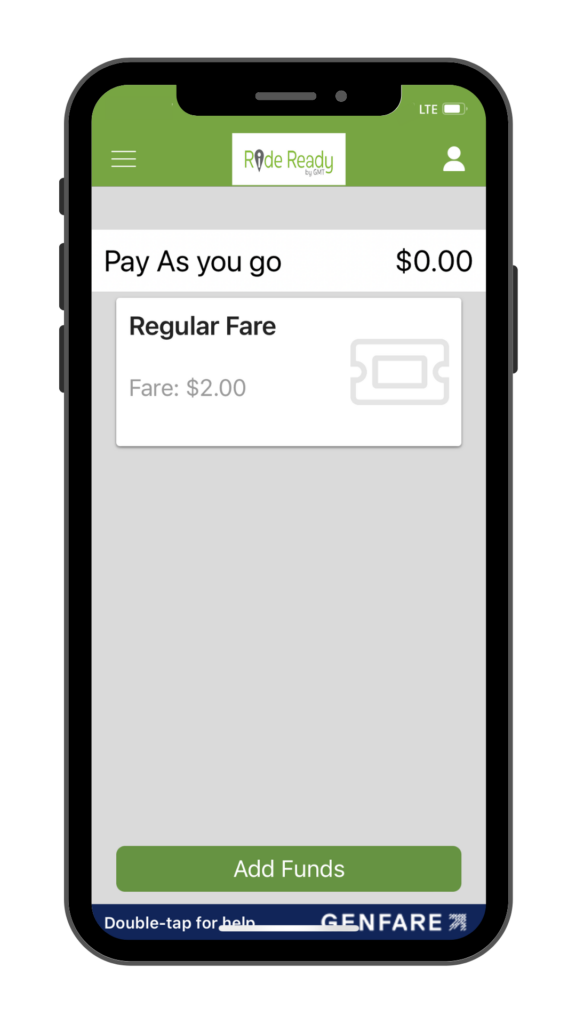
- Tap Add Funds
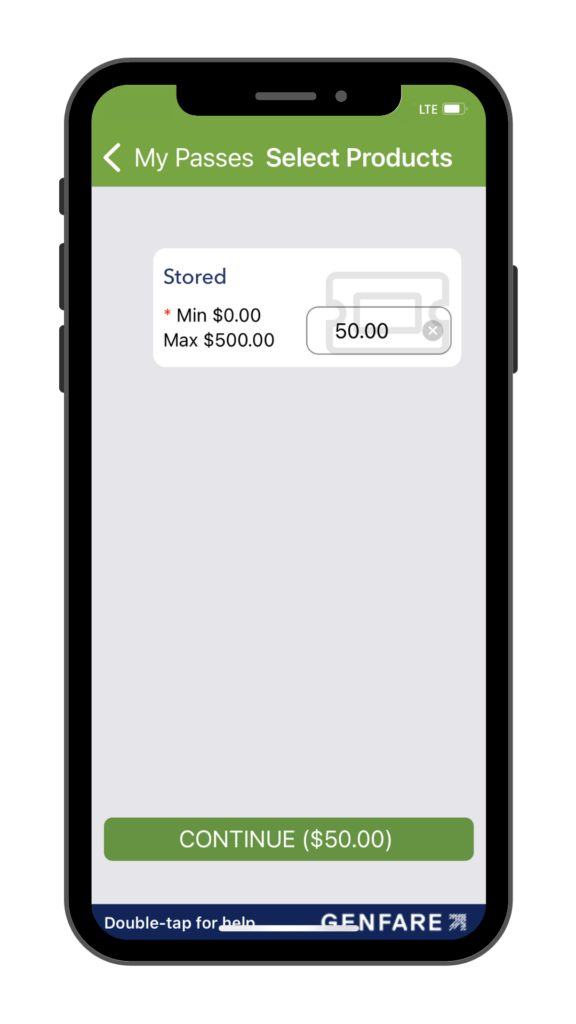
- Input the amount of stored value you want to add
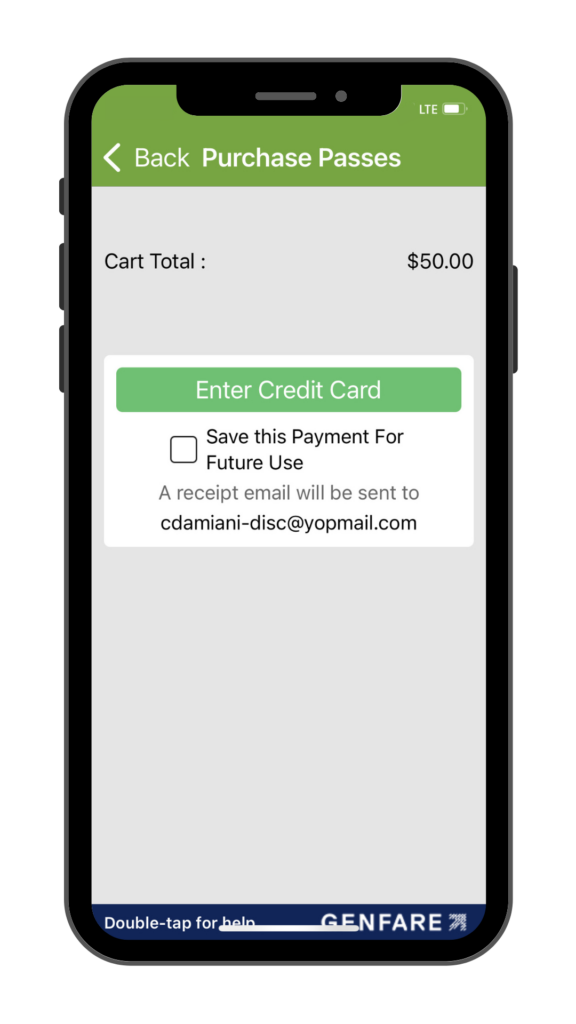
- Continue to checkout
Select save payment to make future checkouts even easier!
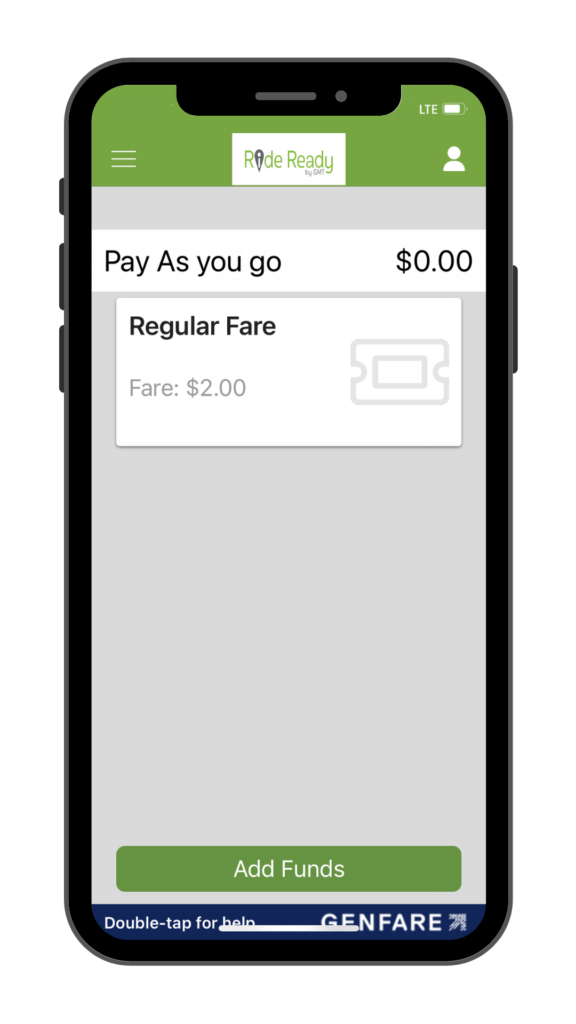
2. Activate
Activate passes anytime anywhere in seconds.
- Select your fare
- Tap yes to activate your pass
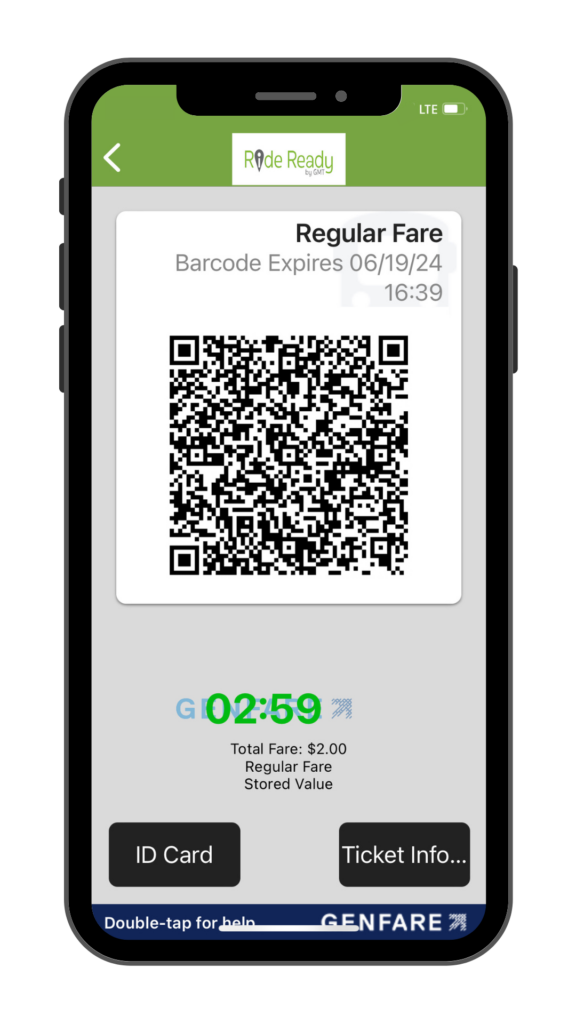
You have three minutes to use your pass once it’s activated.
3. Ride
Simply, scan the barcode at the farebox and enjoy your ride.
Best Practices:
- Ensure your brightness is turned up
- Place your phone flat to the scanner
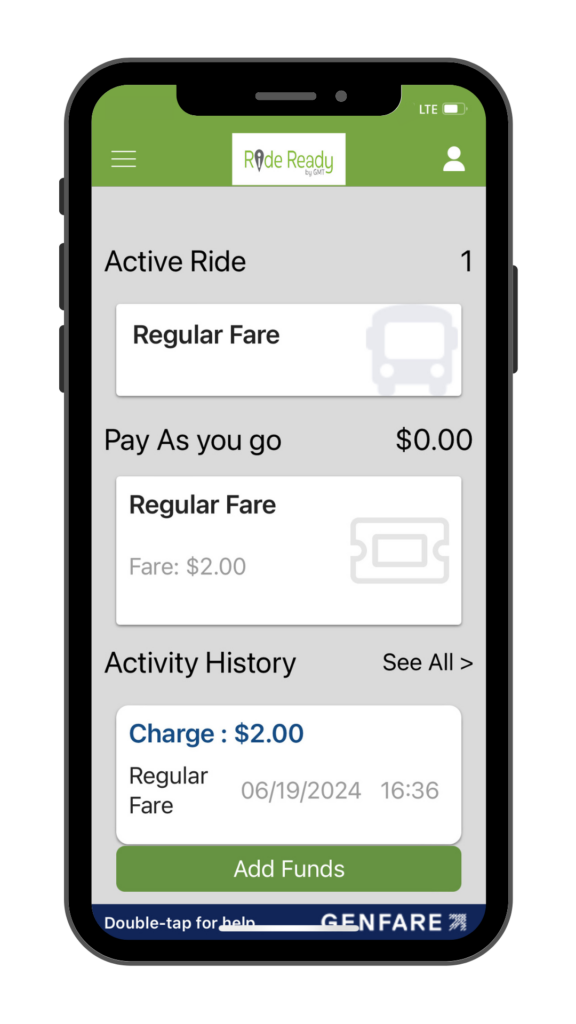
How to Use the Ride Ready by GMT App
Download the Ride Ready by GMT app from the App Store or Google Play Store.
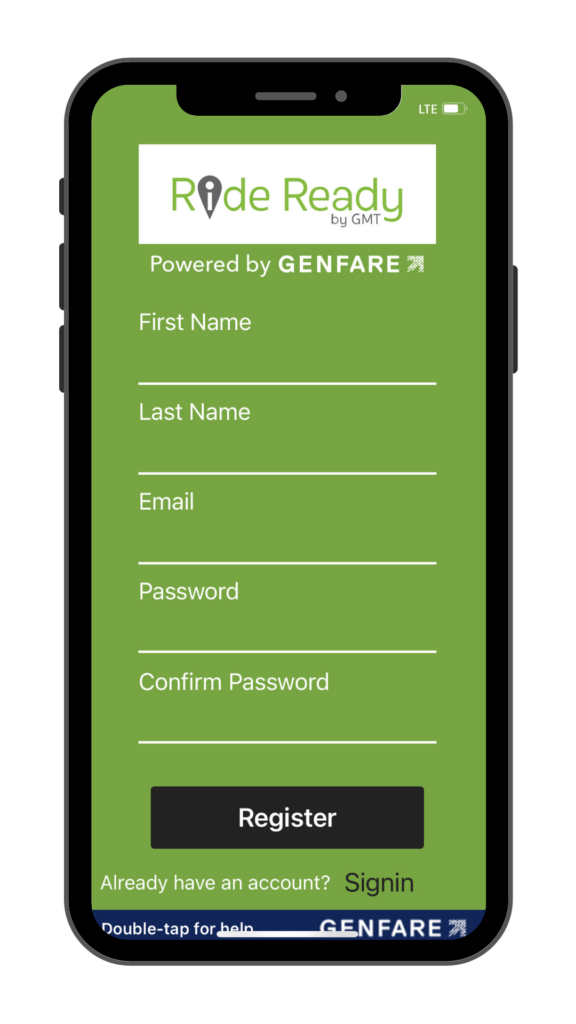
Select “Sign Up”, complete the form, and tap “Register”.
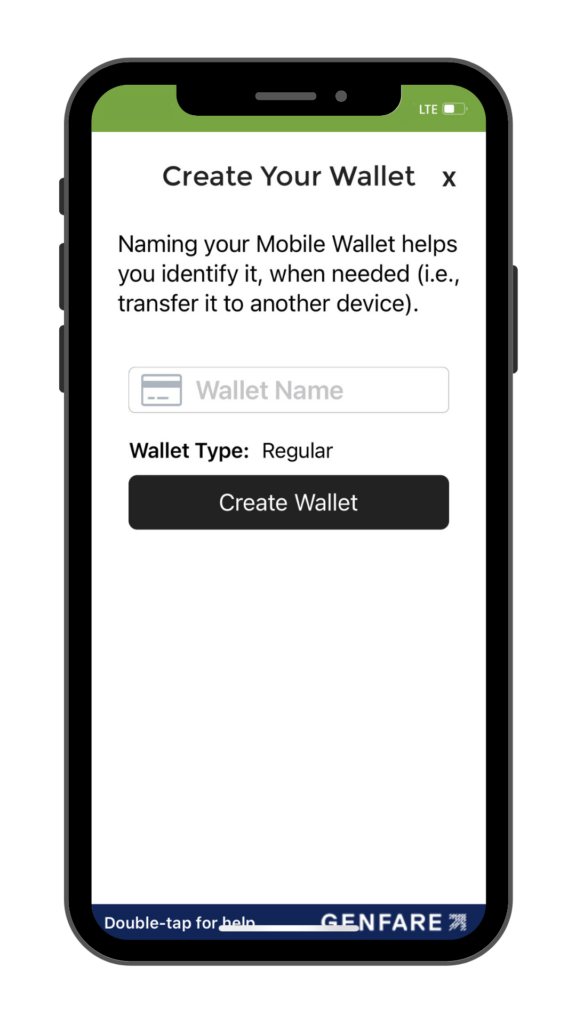
Once you’ve registered for an account, you will be asked to create a mobile wallet.
Your mobile wallet is attached to your unique device and cannot be transferred to another device without first releasing the wallet.
Please note: accounts created in the app will be set to regular fare. Customers eligible for discounted fares and those wanting to pay for their children to ride with them should call 802-540-2468, email info@ridegmt.com, visit the Downtown Transit Center, or our administrative office in Burlington.
To learn more about discount eligibility please refer to our Discount Fare Program.
Stored value can be loaded onto mobile wallets in the app at the Downtown Transit Center, our administrative office in Burlington, and through the Ride Ready by GMT app itself.

To add stored value in the app, go to “My Passes” and tap the add funds button at the bottom of the screen.
Input the amount of stored value you want to add by tapping the field labeled “Value to add” using your keyboard to input the amount and tapping continue.
Review your cart total before tapping Enter Credit Card and moving to check out.
Select save payment to make future checkouts even easier!

Input your payment information and complete the CAPTCHA prompt to submit your payment. A receipt of the transaction will be sent to your email.
To track your progress towards the daily and monthly cap, tap the profile icon in the upper right corner.
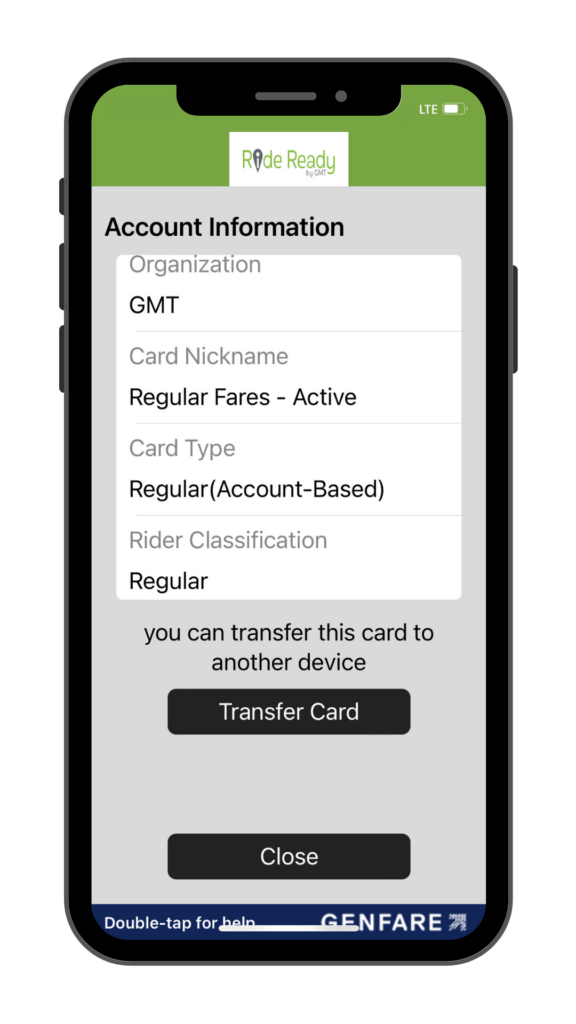
Scroll through your account information until you see the advanced cap and tap “View Details”.
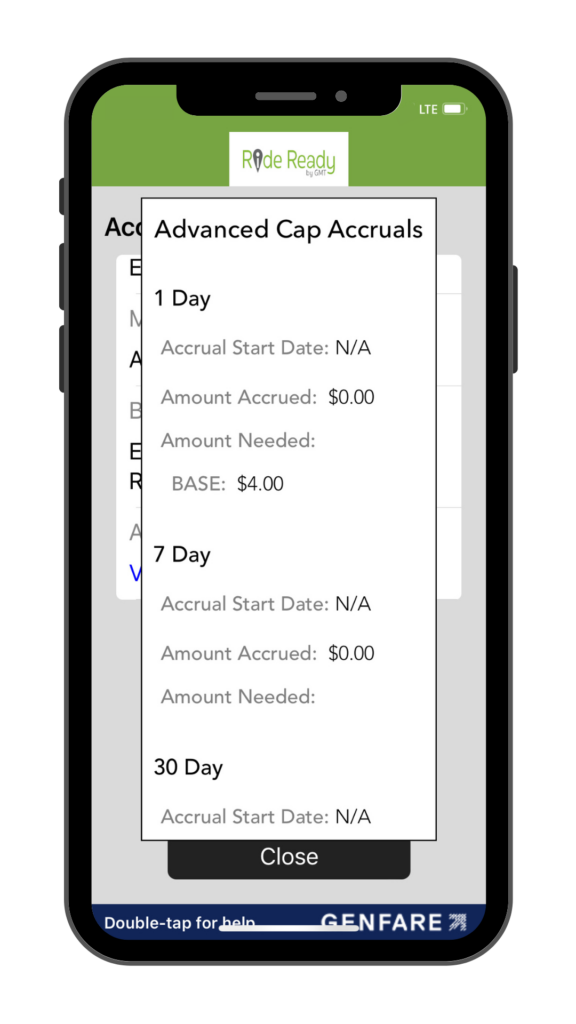
Review your fare capping details to see how much you’ve spent, how close you are to your daily or monthly cap, and when your cap period began.
Customers eligible for discounted fares must call 802-540-2468, email info@ridegmt.com, or visit the Downtown Transit Center or our administrative office in Burlington to change their profile.
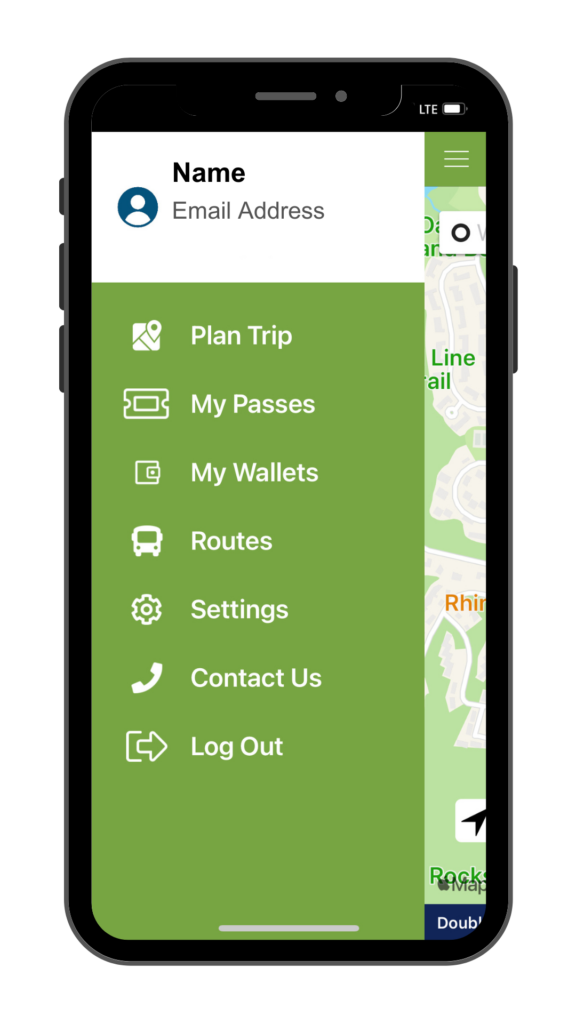
Log out of your account by tapping the menu icon in the upper left corner and tapping “Log Out”, then log back in.
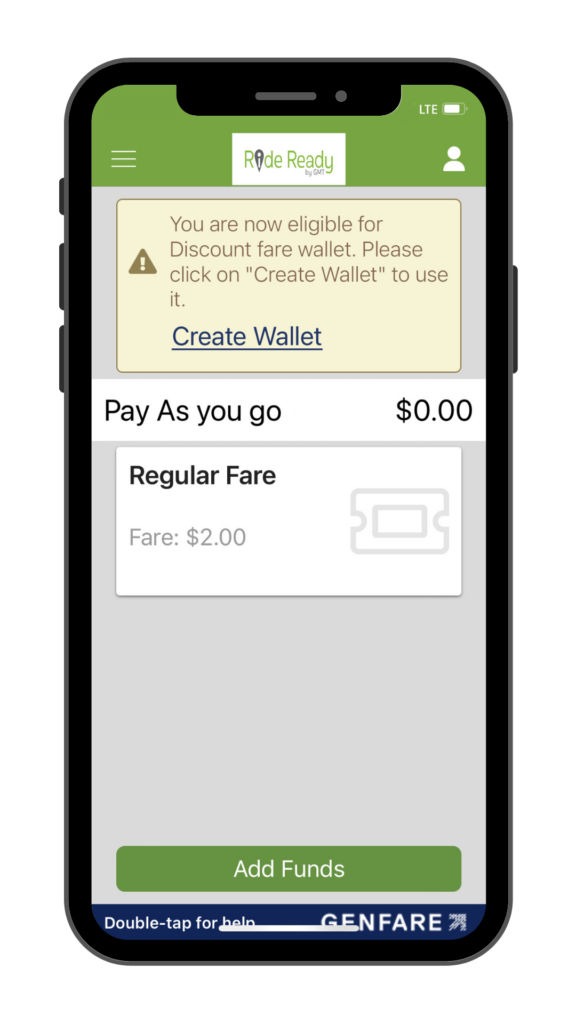
A yellow pop-up stating you are eligible for a discount fare wallet will appear; tap the link to create a new wallet.
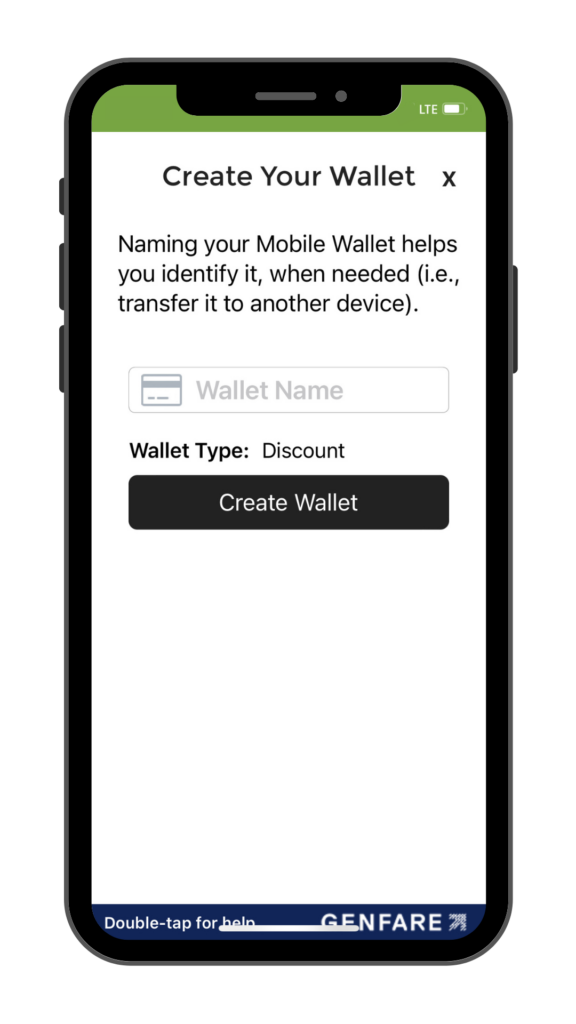
Give your wallet a name and tap “Create Wallet”.
Make sure to give your wallet a different nickname from your previous one, so it is easy to locate when needed.
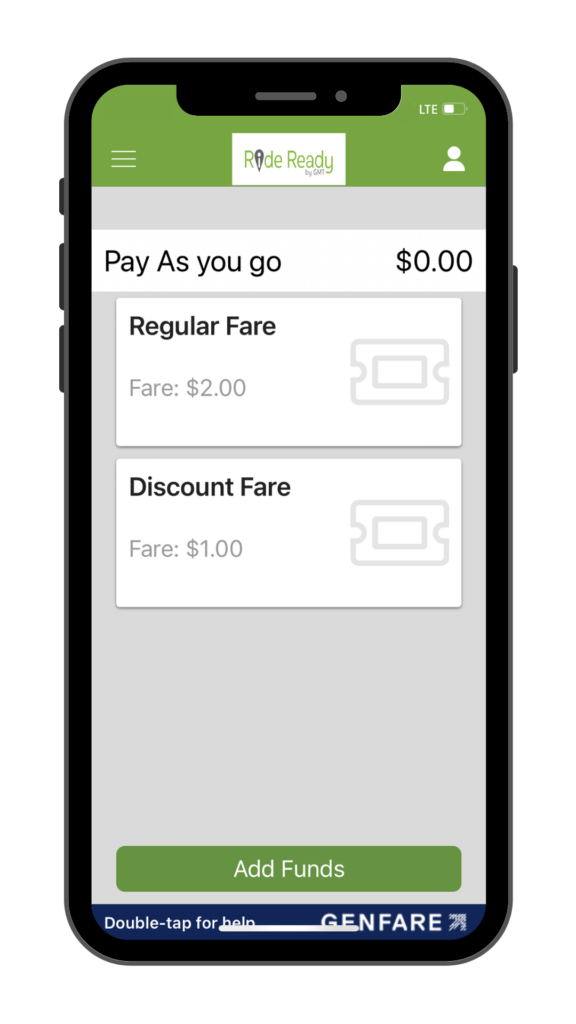
A discount fare pass will now be available when you select “My Passes” in the app.
Passengers paying for children must call 802-540-2468, email info@ridegmt.com, or visit the Downtown Transit Center or our administrative office in Burlington to change their profile.
Log out of your account by tapping the menu icon in the upper left corner and tapping log out, then log back in.
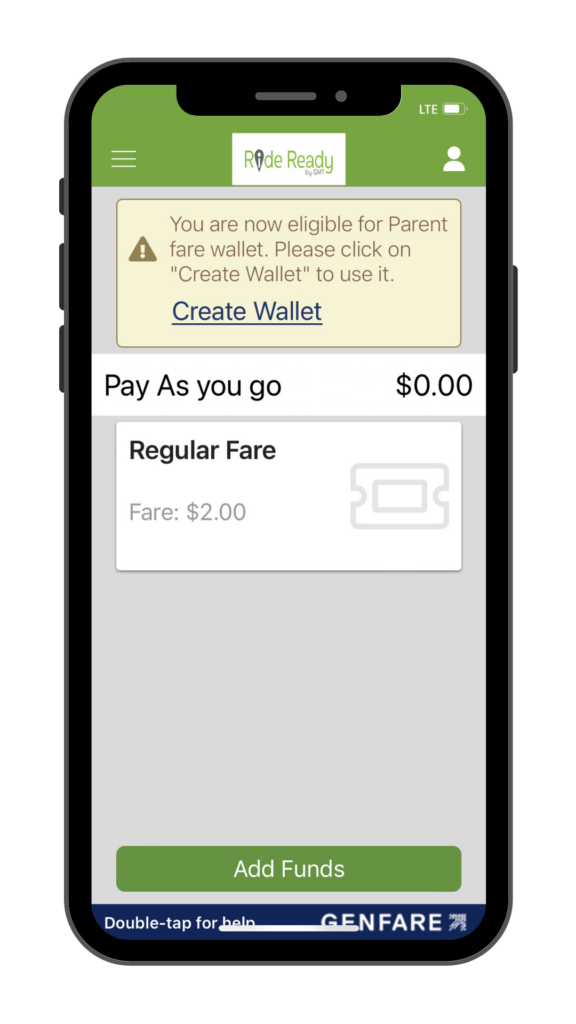
A yellow pop-up stating you are eligible for a Parent fare wallet will appear; tap the link to create a new wallet.
Make sure to give your wallet a different nickname than your previous one so it is easy to locate when needed.
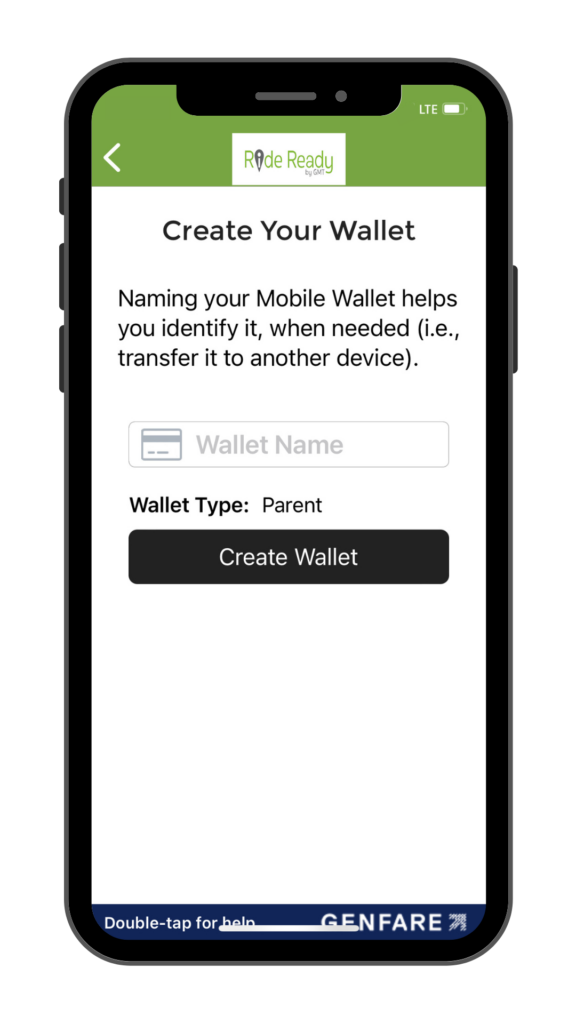
Give your wallet a name and tap “Create Wallet”.
Make sure to give your wallet a different nickname from your previous one, so it is easy to locate when needed.
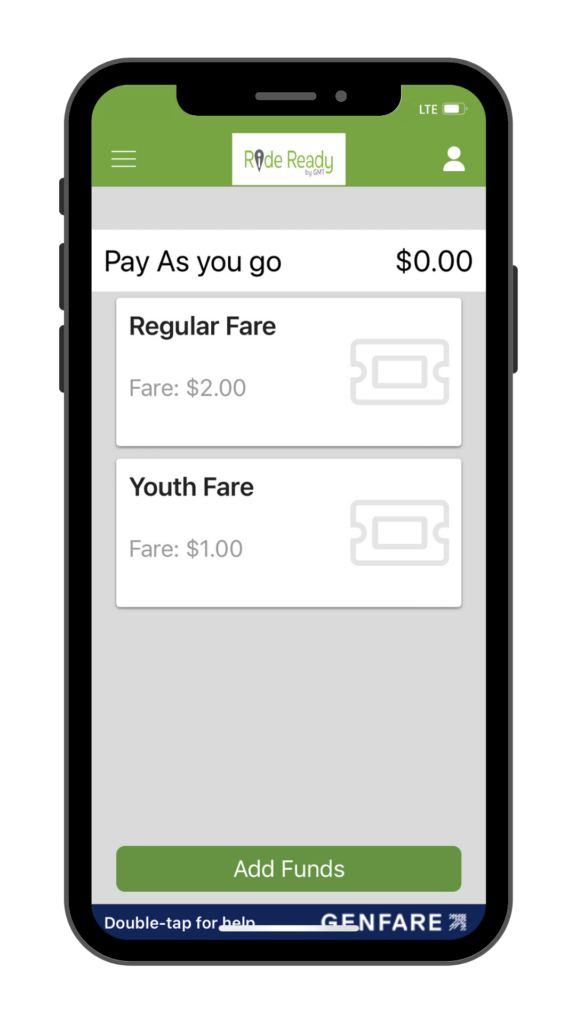
A youth fare pass will now be available when you select “My Passes” in the app.
Go to your account settings by tapping the menu icon in the upper left corner and tapping “Settings”.
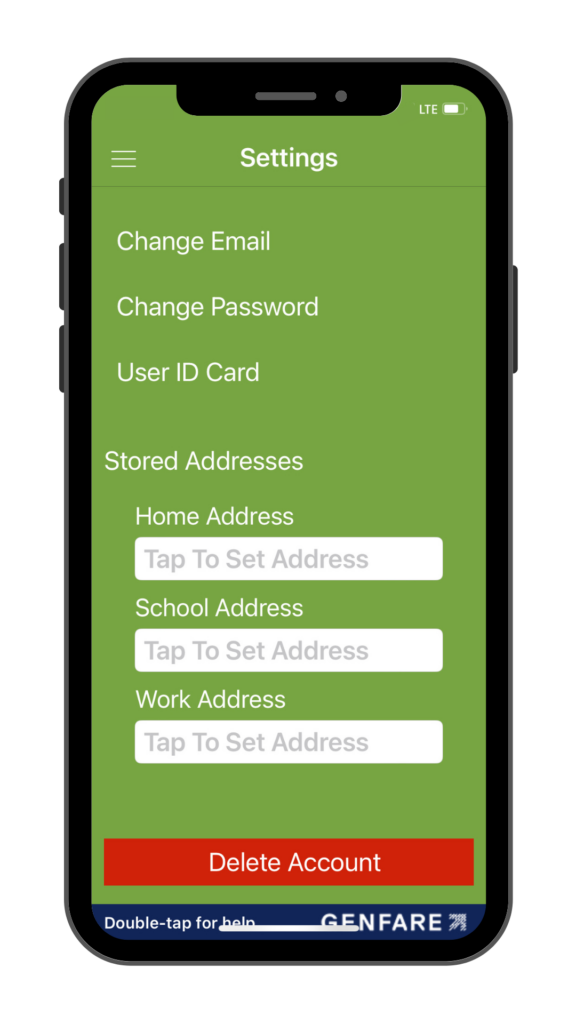
From “Settings” you can change your email and password, and store addresses you use regularly to speed up future trip planning.
Please note: that updating your email will change the username of your account.
Once you have activated your pass and scanned it at the farebox, you can pay for additional riders in your party using the app. Please note: fares paid for additional riders will not count towards your daily and monthly cap.
Tap the back arrow in the upper left-hand corner of your activated pass to return to “My Passes”
Underneath your active pass, you will see your pass options, and select the eligible fare for the rider you are paying for.
To learn about discount eligibility please refer to our Discount Fare Program.
Tap yes to activate the pass and scan the barcode at the farebox to pay.
You can release your mobile wallet for retrieval on a new device in the Ride Ready by GMT app, by emailing a request to info@ridegmt.com, calling 802-540-2468, or asking a customer service representative at the Downtown Transit Center or our administrative office in Burlington.
Tap the profile icon in the upper right corner to access your account information.
To release your mobile wallet from your device, tap “Transfer Card”.
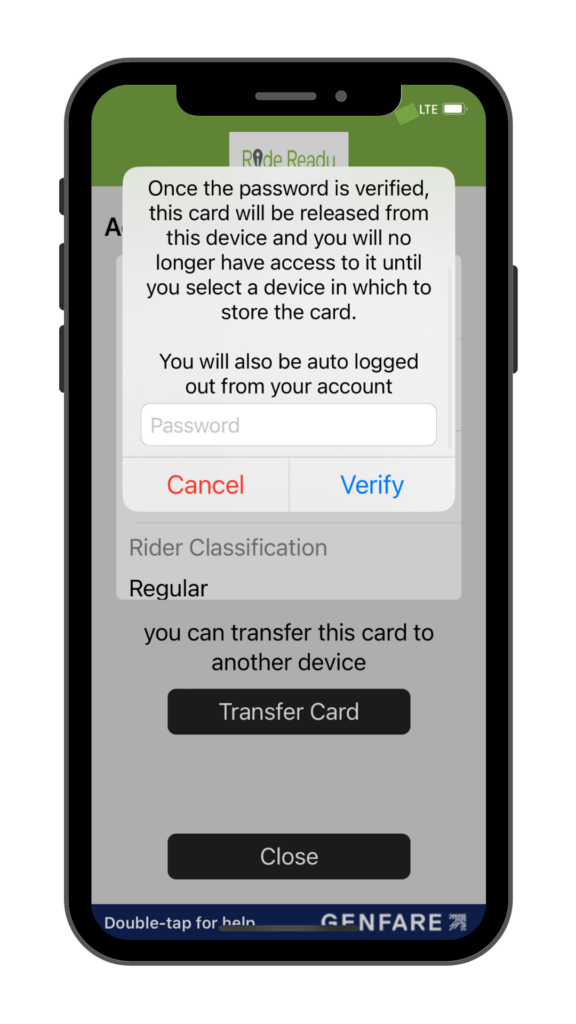
Type in your account password and tap verify to release your mobile wallet from your device.
Please note: You will be auto-logged out of your account upon releasing your mobile wallet.
To retrieve a mobile wallet on your device, tap the menu icon in the upper left corner and select “My Wallets”.
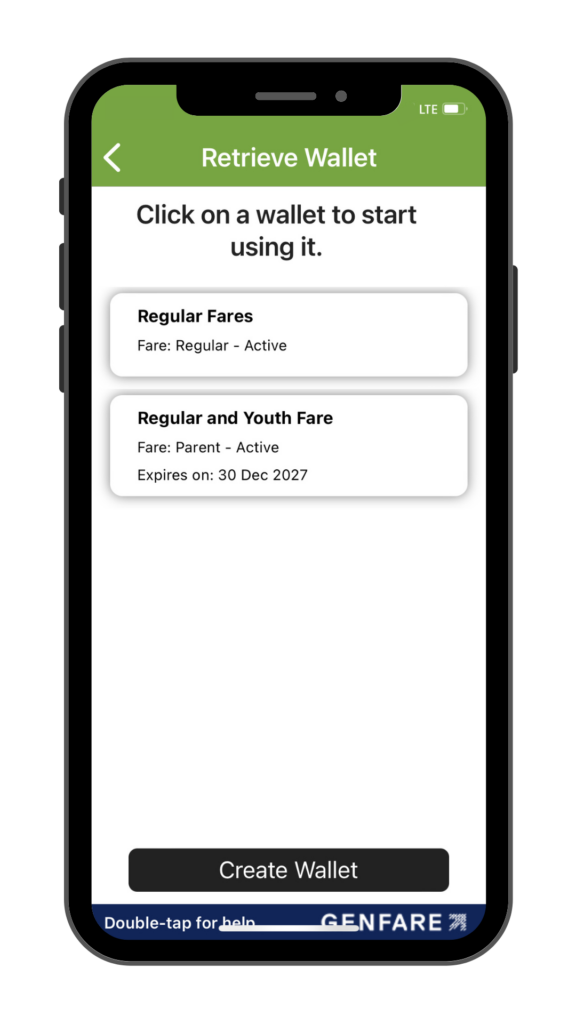
Select the mobile wallet you want to attach to your device.
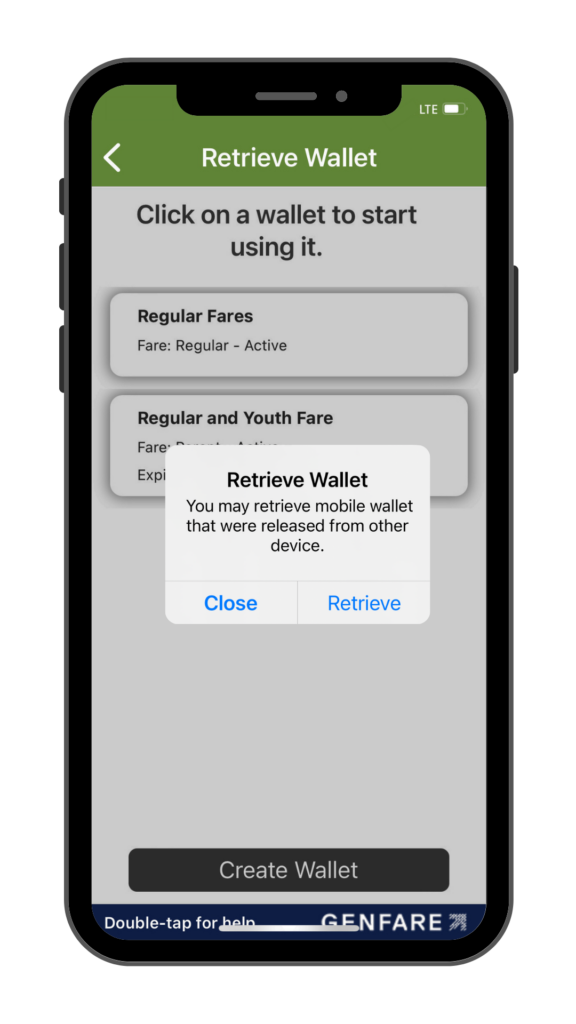
Tap “Retrieve” to attach the mobile wallet to your new device and begin using it.
Please note: If your mobile wallet is in use on a different device, you cannot attach it to your device without having it released first.
You can reset your password from the Ride Ready by GMT app, or by emailing a request to info@ridegmt.com, calling 802-540-2468, or asking a customer service representative at the Downtown Transit Center or our administrative office in Burlington.
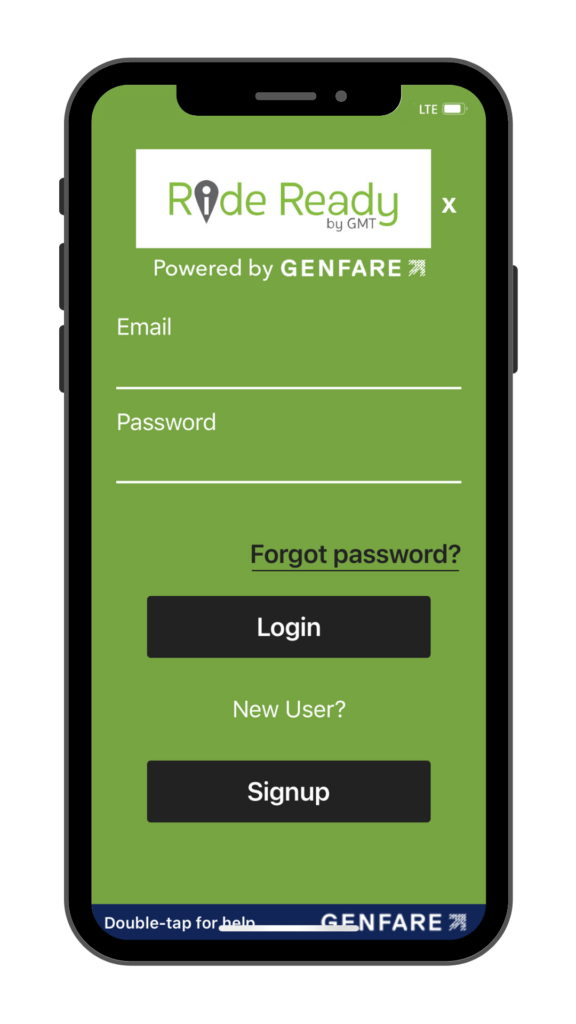
To reset your password from the app, tap “Forgot Password.”
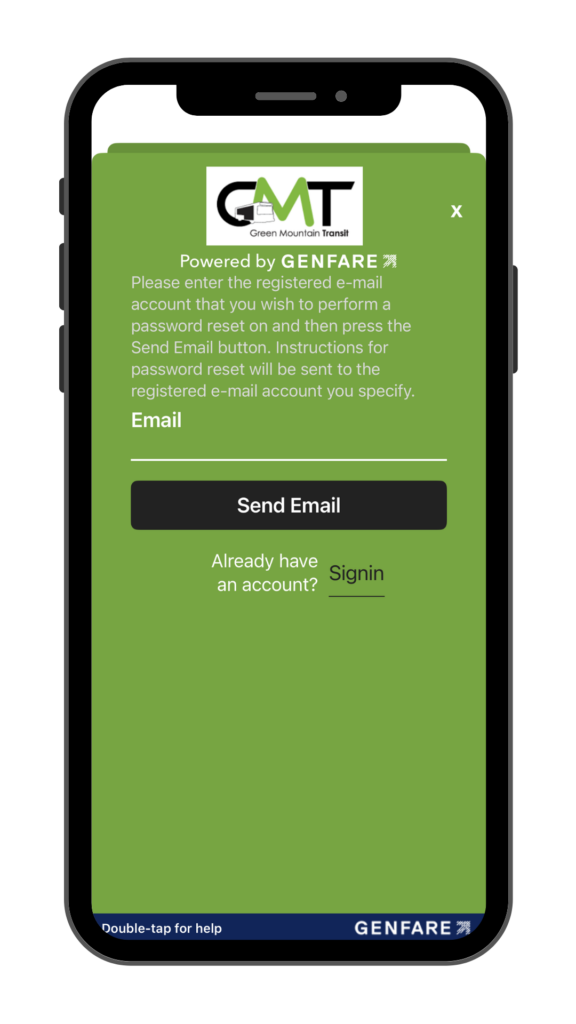
Enter the email address associated with your account and tap “Send Email.”
Instructions on resetting your password will be sent to your email account. Tap the link in the email to navigate to password recovery.
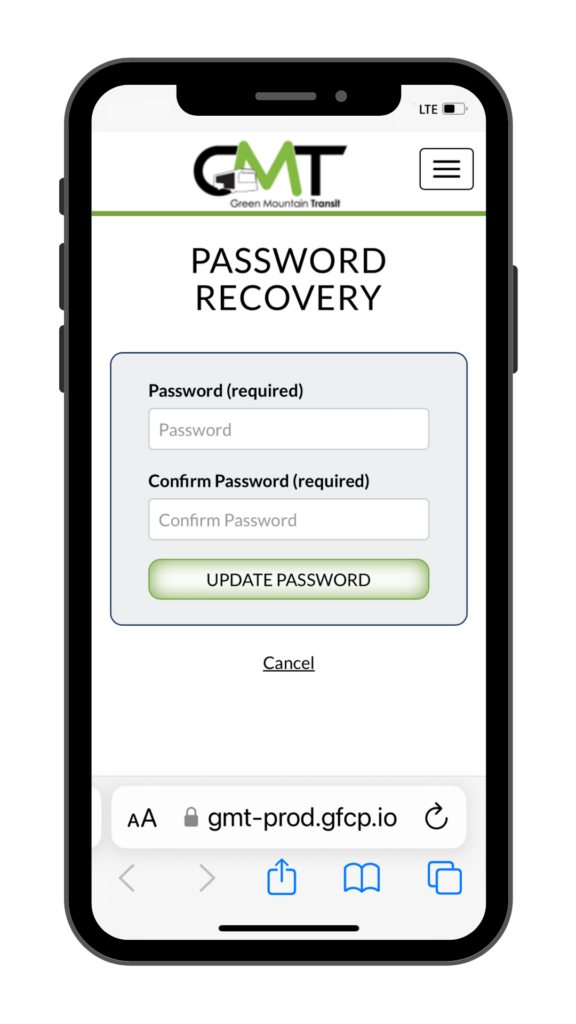
Create a password with at least 8 characters that contains at least one number, and tap “Update Password”.
To navigate to trip planning, tap the menu icon in the upper left corner and select “Plan Trip”.
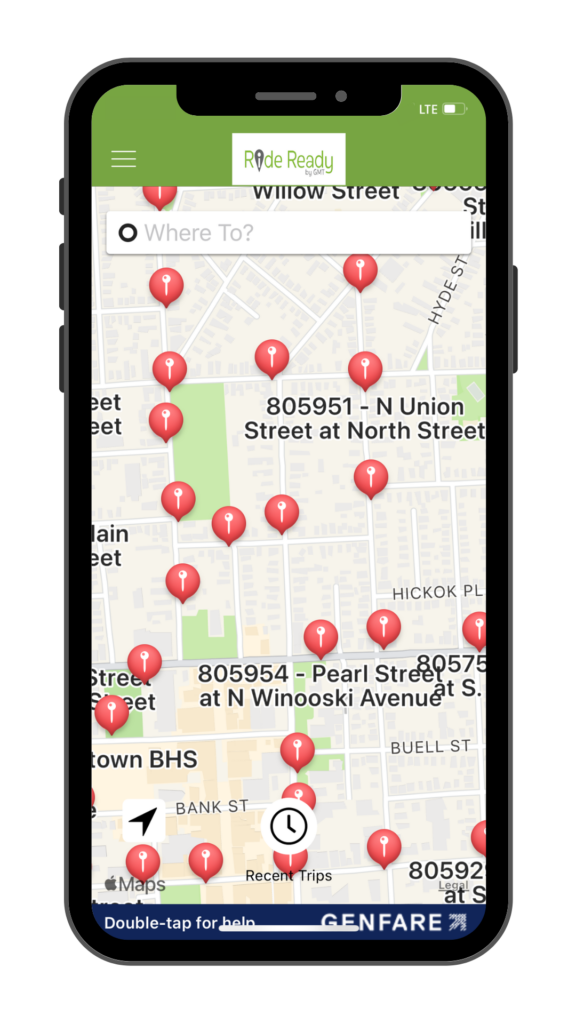
Select “Where to”, type in your origin and destination, and tap route.
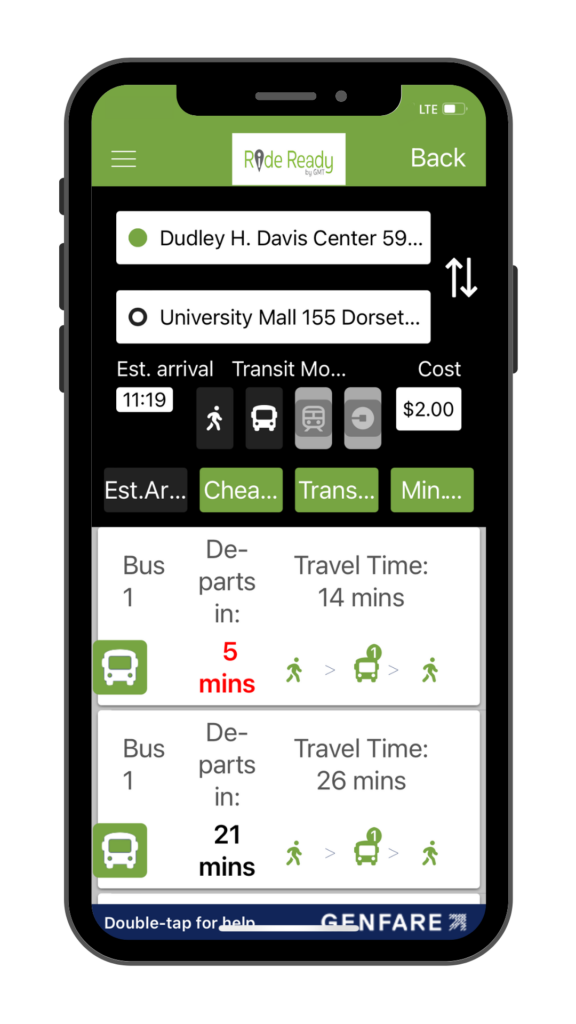
Select the trip that works best for your schedule.
Filter results by estimated arrival time, cheapest price, number of transfers, and minutes spent traveling.
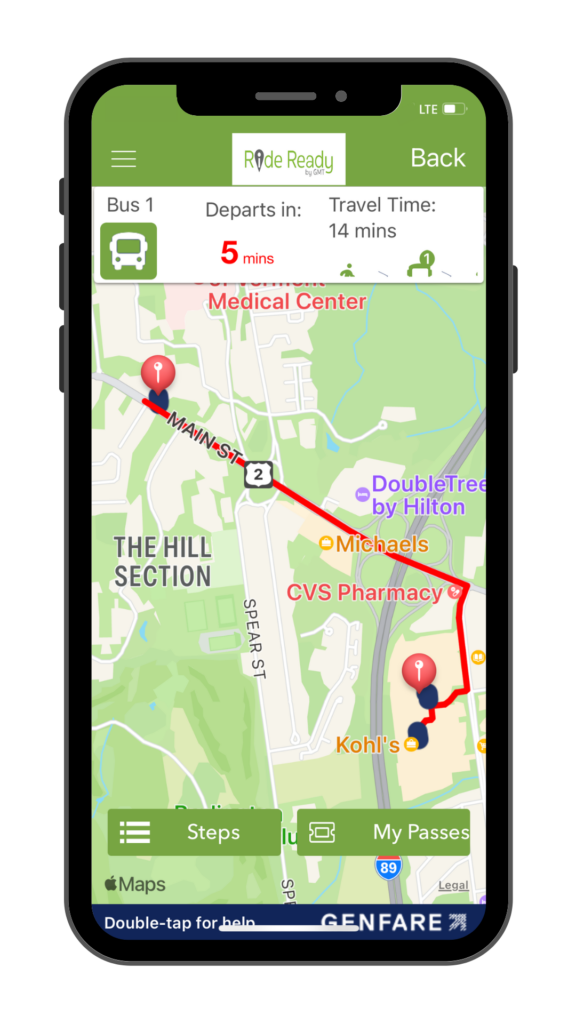
View your bus route, departure, and travel time. To see instructions on traveling to your destination tap steps in the bottom left of your screen.
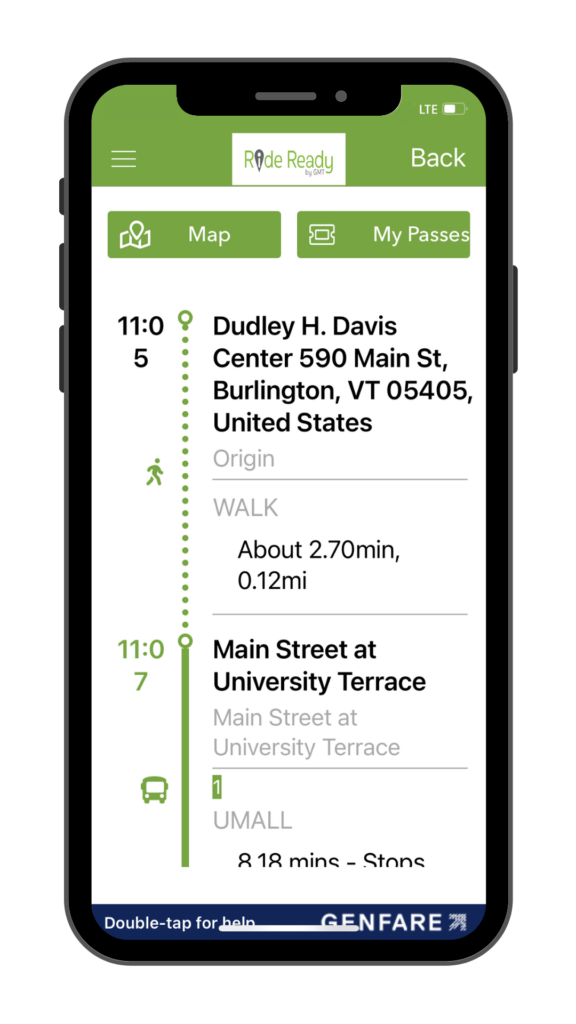
View the walking distance to your stop, onboard directions, and walking directions from your stop to your final destination.